meta pixel

UCC will open at 10am today.

Search Icon

Student Login

Student Login

One Password, All Services

Login into Self-Service, Student Email, and Canvas with one password.

Need help accessing your student account?

Ask us in the chat or see tips below.

Issues with Self Service Banner

Your email opens but you can’t get into Self Service Banner.

  1. Open an “Incognito window” or “Private window” and navigate to umpqua.edu.
  2. Then click on “Students” at the top of the page
  3. Then click on “Login”
  4. Authenticate with your current password. If your password is expired, you will be asked to set a new password.
  5. Once you finish authenticating, you should land on the student portal.
  6. Click on “Self Service”
  7. Log in to Self Service with student ID (800######) and new password. (Be sure NOT to use your email (800######@umpqua.edu) as your username.)
  8. Once successfully logged in, you can close the incognito or private window.
New Student Account Access

 To get started, follow these steps:

  1. Access the UCC Welcome Letter sent to your personal email account; this letter contains your Student ID 800xxxxxx.
  2. Complete New Student Orientation to learn how to access your student accounts. There are two options:
UCC Student Email Address

Your UCC student email address is your student ID [email protected].

Example: [email protected]

Resetting a Forgotten/Expired Password

UCC account passwords expire every 120 days (about 4 months). Your password may have expired.

Follow these steps to reset your password:

  1. Go to reset.umpqua.edu.
  2. Enter your student email address using your student ID: [email protected].
    • A 6-digit code will be emailed to your personal email account.
  3. Use the code to reset your password within 15 minutes.

After you reset your password, you will utilize the new password to log into Self Service with your 800 number (student ID) as the username.

If you encounter any issues, please call 541-440-7808 ext. 5 or 541-440-4711.

Accessing Account After a Year or More

We are excited that you are interested in returning to Umpqua Community College. After being inactive in our system for over a year you will need to reapply to UCC to reactivate your student record and accounts. Be sure to select that you are a returning student during the application process.

Tax Information

Many student accounts deactivate after graduation or after a year of inactivity. Please contact Student Accounts to ask about retrieving your tax information at 541-440-4630.

Transcripts

Contact one of the following:

Multifactor Authentication (MFA)

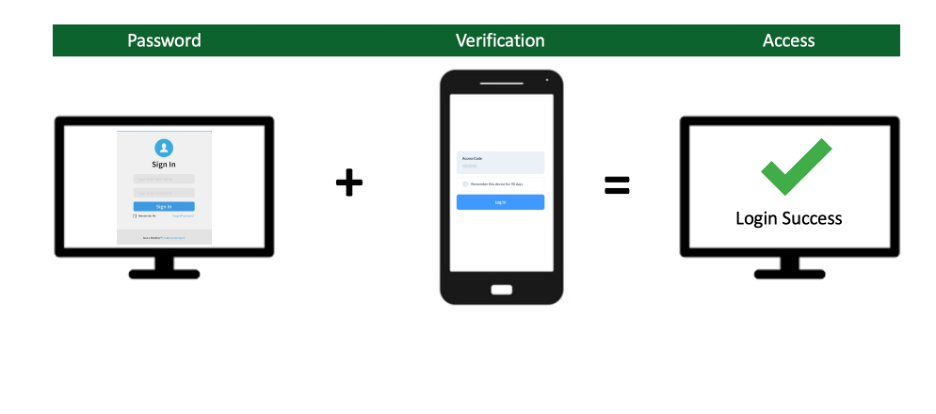
The College has added 2-step verification, which is an extra layer of security on top of your password and helps with recovery of forgotten passwords.

You will have a choice of using your mobile phone for a text message or downloading the Microsoft Authenticator app (you do not need phone service just wifi capabilities). Either method improves your security by making it harder for others to access your account.

Logging in using MFA:

Step 1: Go to the UCC Students portal and enter your student email address and password

Step 2: Receive a unique one-time code by text message or through the Microsoft Authenticator app.

Step 3: Enter the code on the sign-on webpage or approve the notification in the Authenticator app on your phone.

Detailed Instructions

Step 1: On your desktop computer, choose sign-in options.

Step 2: Screen shows “More information required” click the “Next” button.

Step 3: Choose Authenticator app and follow the instructions to install the Authenticator app on your mobile phone.

Step 4: Get a one-time number to enter onto your mobile phone.

Step 5: Open Authenticator on your mobile phone and enter the number from your desktop computer. You will automatically be signed in.

Step 1: On your desktop computer, choose sign-in options.

Step 2: Screen shows “More information required” Click the “Next” button.

Step 3: Click on the link “I want to set up a different method.”

Step 4: Get a one-time number on your mobile phone to enter on your desktop computer.

Step 5: Enter the passode on your desktop computer and you will be automatically signed in.

Step 6: Login success.

IT Live Chat Help